How to Change The Default Application In macOS
In macOS each file type is opened automatically by a default application. This short blog post will explain how you can change the default application a file opens with.


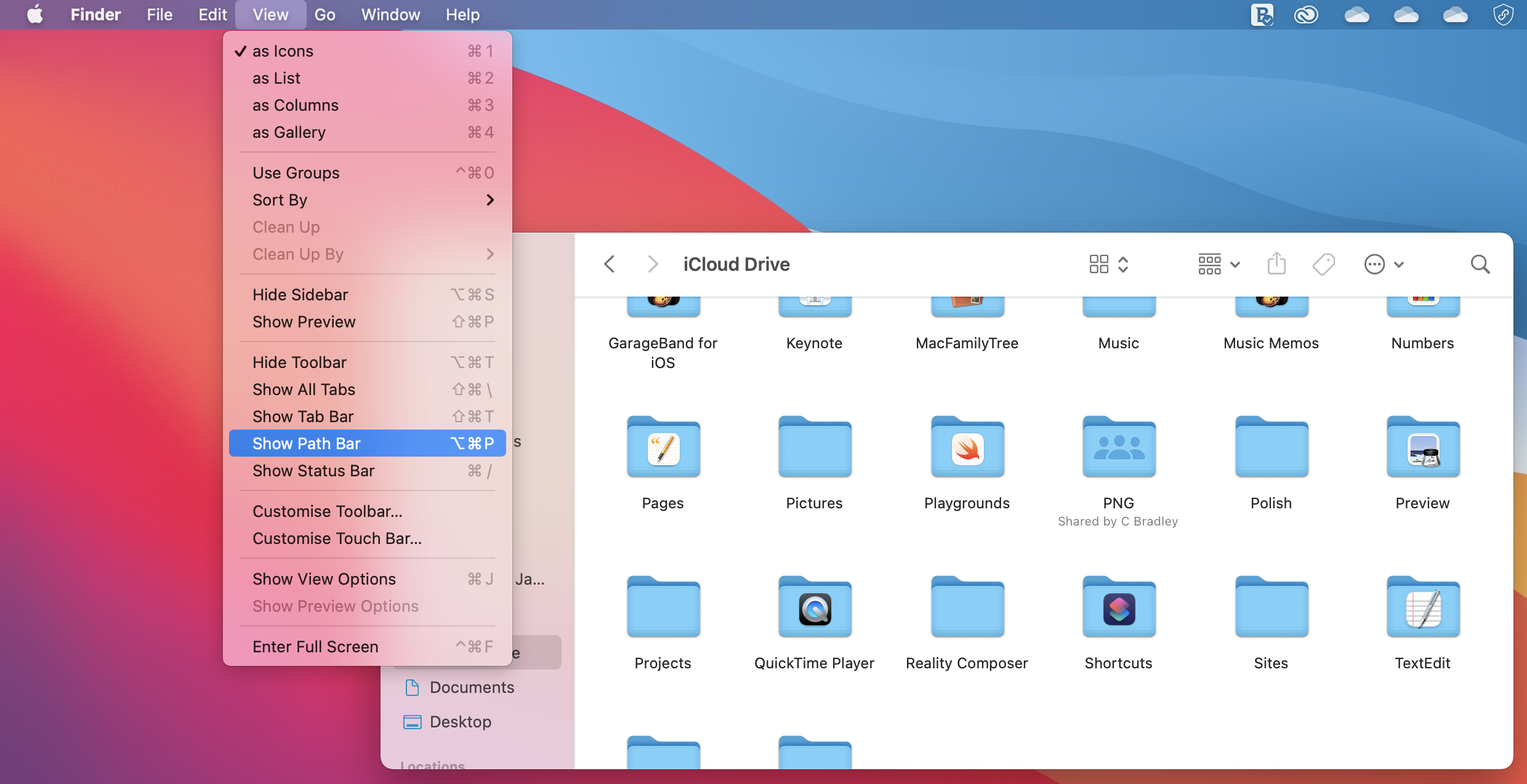
You can access iCloud Drive from Finder, but for a quick way to see you cloud files you can add a shortcut to the Dock. As the icon for iCloud Drive is inaccessible from the Applications folder, we will show you 2 ways to add this onto the Dock.
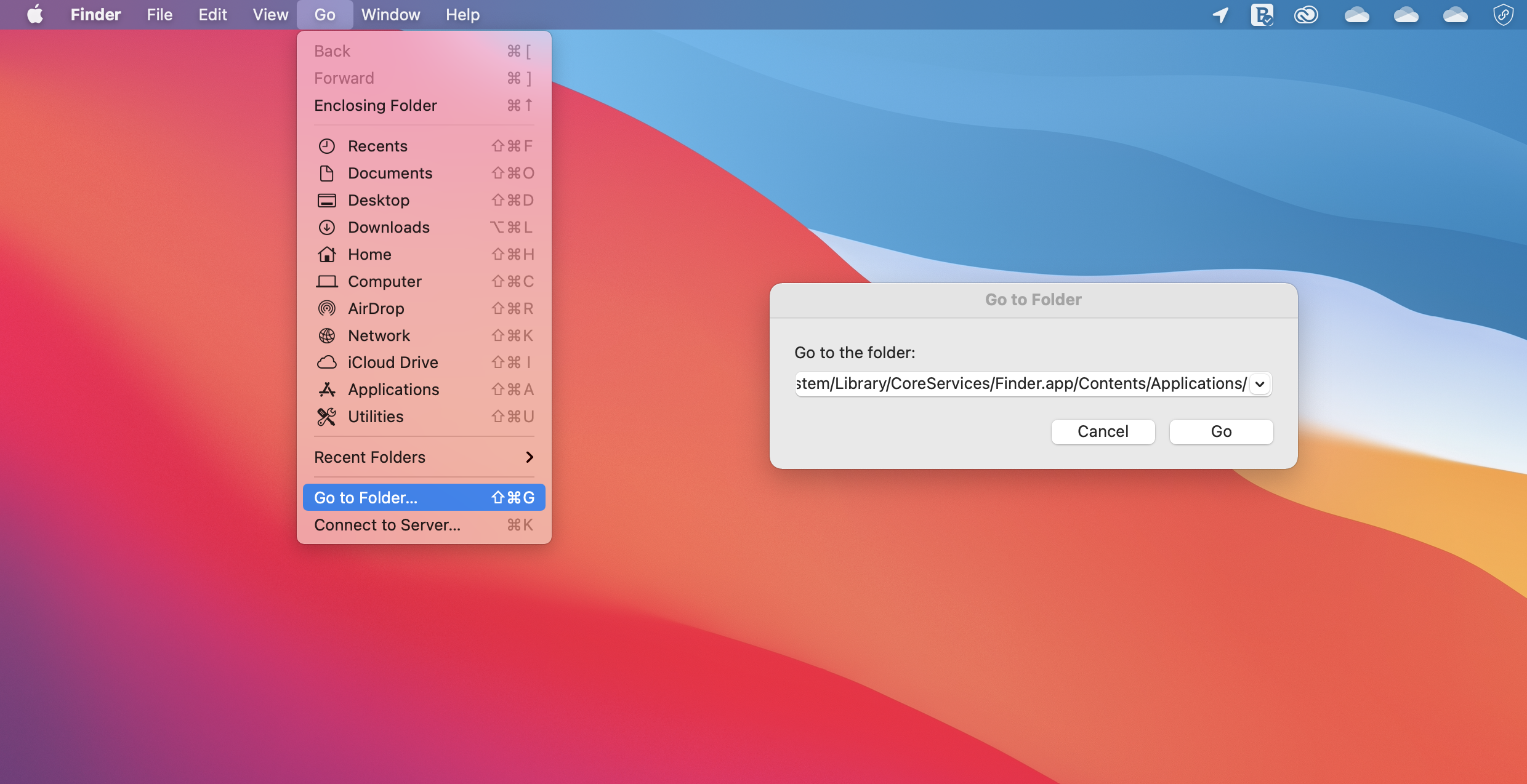
Paste…
/System/Library/CoreServices/Finder.app/Contents/Applications/…into the Enter a path field.
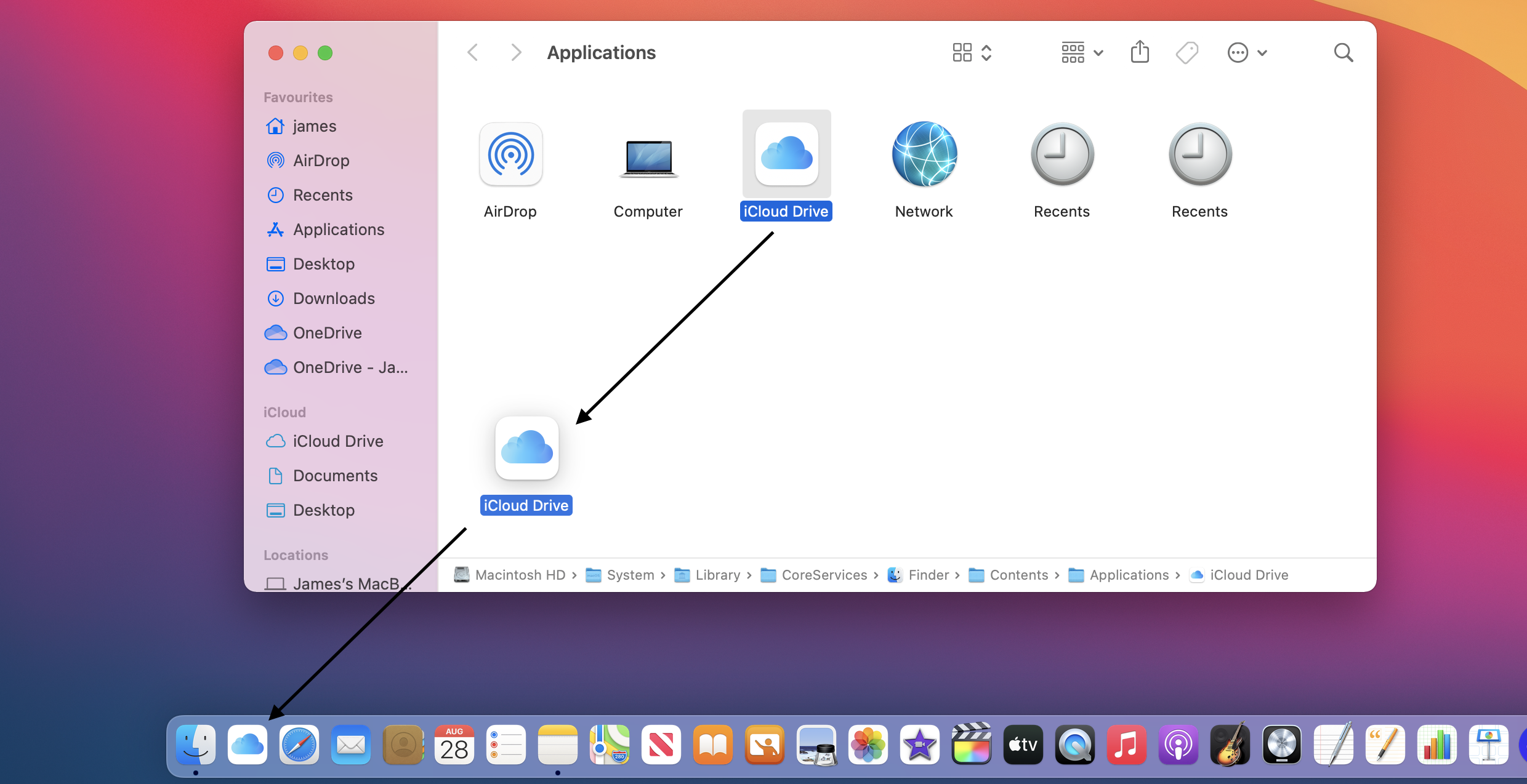
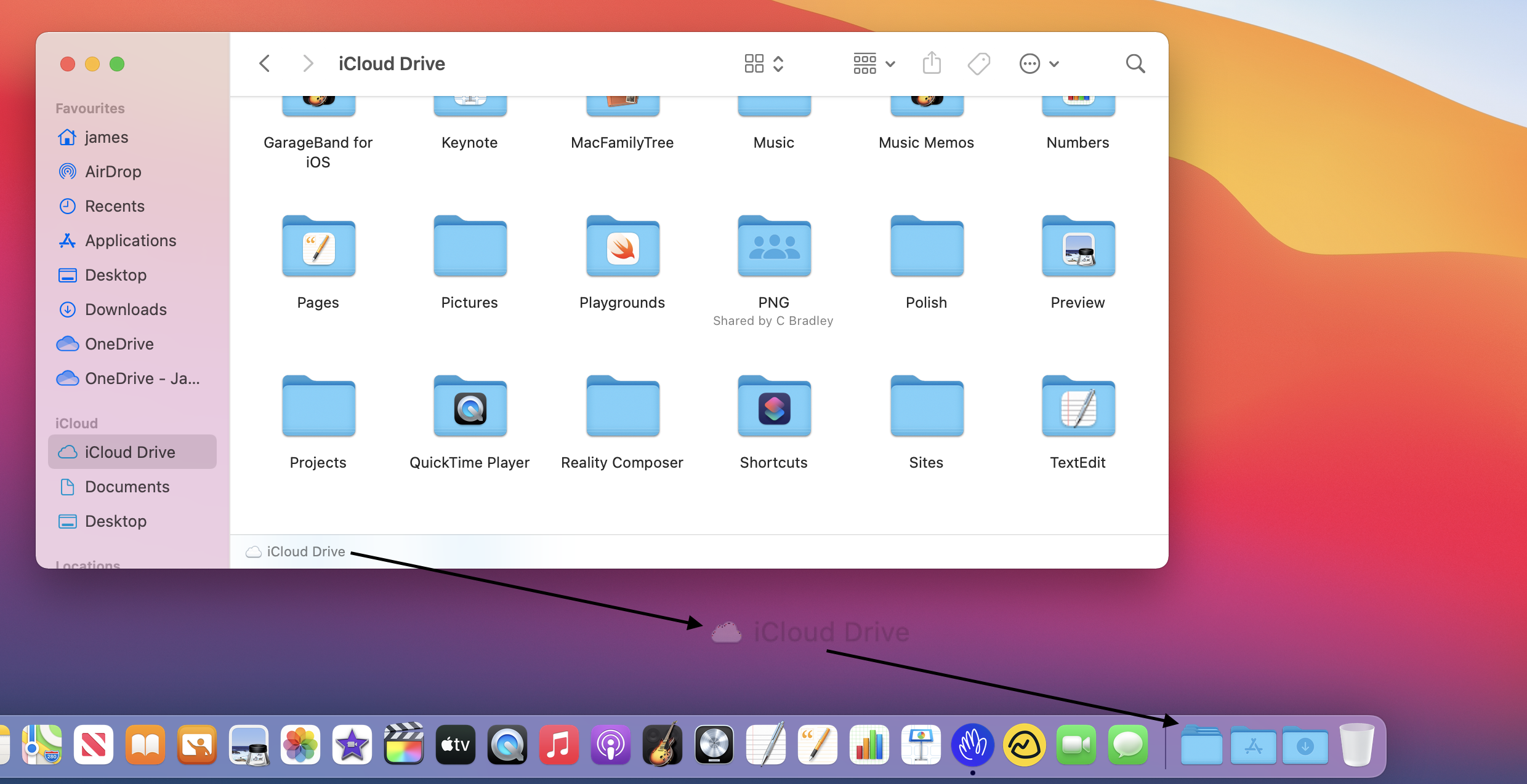
::WARNING:: Be careful not to drag the iCloud Drive folder on to the desktop as this will make a copy of the folder and its contents there.
These instructions should work on any version of macOS that include iCloud Drive.
Originally posted 11 April, 2025.
In macOS each file type is opened automatically by a default application. This short blog post will explain how you can change the default application a file opens with.
Whereas it is a standard feature to rename an individual file, since MacOS X Yosemite (10.10), it has also been possible to rename groups of files at the same time.

When you have multiple applications open at once there are several ways you can switch between these applications efficiently.